
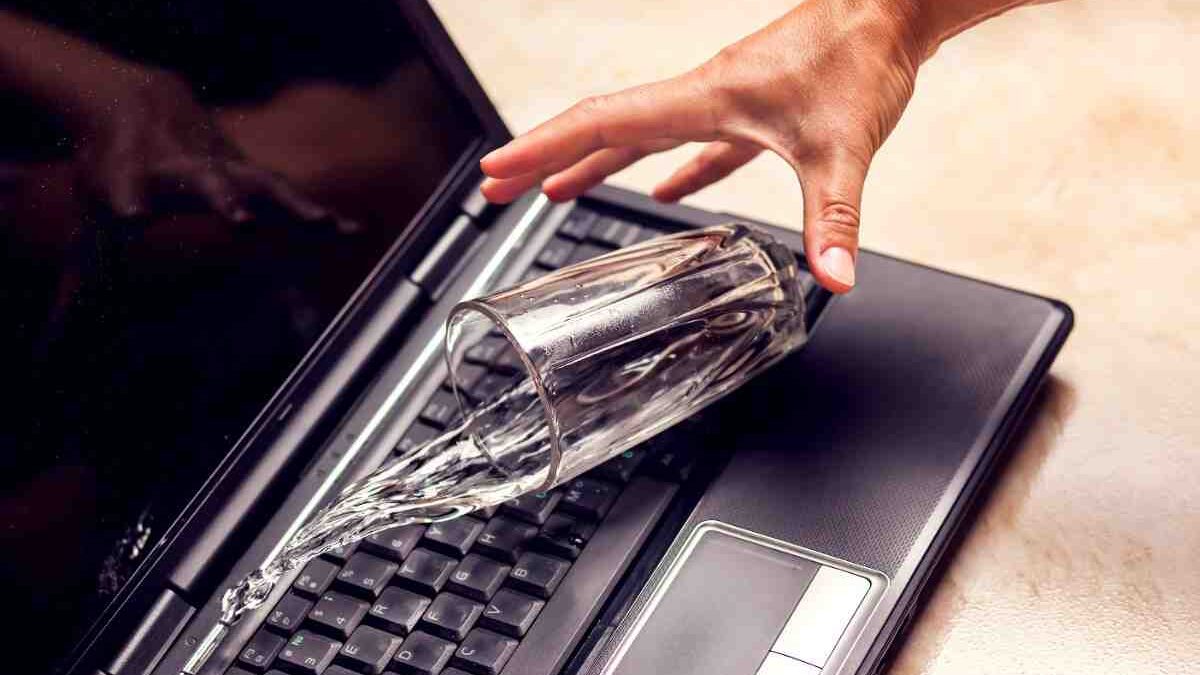
Water Spilled on Your Laptop? Immediate Steps That Can Save Your Data
Key takeaways
- Power down and unplug within seconds; every moment powered on risks a short circuit.
- Turn the laptop face down to drain any liquid, then let it air-dry for 24 to 48 hours.
- Never turn it on to 'test' it, and skip the rice-and-hair-dryer myths.
- Sugary or salty liquids corrode faster than clean water, so act sooner.
- Your data is often recoverable even when the laptop itself is not repairable.
Answer First: What to Do the Moment Water Spills on Your Laptop
The moment water spills on your laptop, shut it down instantly, unplug the charger, remove the battery if you can, and flip the laptop into an upside-down tent to let liquid drain out. Then leave it powered off to dry for at least 24 to 48 hours. Speed matters more than anything else here, because a laptop that stays powered while wet can short-circuit and turn a recoverable spill into a dead motherboard.
The 60-second emergency checklist
Work in this order and do not stop to check whether things still work:
- Hold the power button until the screen goes fully dark.
- Pull the charging cable out of the laptop.
- Disconnect USB drives, mice, and headphones.
- If your model has a removable battery, take it out.
- Flip the laptop into a tent shape, keyboard facing down.
- Blot visible water with a lint-free cloth.
Why acting fast protects your data
Water plus electricity destroy components. As long as no current is flowing, plain water sitting on a circuit board is far less dangerous than water on a live one. Cutting power buys you time and dramatically improves the odds that both your device and your files survive.
The core rule
"The single biggest mistake we see is people powering the laptop back on to see if it still works. That one action causes more permanent water damage than the spill itself. Kill the power first and ask questions later." - CaliPhonia – Phone & Computer Repair
Step 1: Power Down and Disconnect Immediately
Cut all power to the laptop as fast as possible by holding the power button for several seconds until it fully shuts off. A live circuit meeting water is what fries components, so getting the electricity out of the equation is your top priority.
Hold the power button vs. safe shutdown
Forget the normal Start menu shutdown; that process can take 15 to 30 seconds while the drive keeps writing and current keeps flowing. Instead, press and hold the physical power button for about 5 to 10 seconds to force an immediate hard shutdown. The small risk of an unsaved document is nothing compared to the risk of a short circuit.
Unplug the charger and remove the battery if possible
Pull the charging cable right away, even if the laptop is already off, because a plugged-in charger can still feed power to the board. If you have an older laptop with a removable battery, slide it out. Many modern laptops have sealed internal batteries you should not pry at, so if you cannot remove it safely, leave it and move on to drying. Do not disassemble a sealed device unless you know exactly what you are doing.
Step 2: Drain, Wipe, and Position the Laptop Correctly
Get the remaining liquid out and away from the internal electronics by inverting the laptop and blotting the surface with an absorbent, lint-free cloth. Gravity is your friend here.
Tent position to let liquid escape
Open the laptop to about 90 degrees or more, then stand it on a towel in an upside-down V, so the keyboard and screen both angle downward. This lets water drain out through the keyboard and vents rather than pooling on the motherboard. Keep it in this position while it dries.
Blot, don’t rub: safe drying materials
Blot, never rub, so you do not push liquid deeper into the seams. Rubbing can also drive sugary residue into the keyboard.
Use these
- Lint-free microfiber cloth
- Clean paper towels for blotting
- Room-temperature air and patience
- An upside-down tent position
Avoid these
- A hair dryer or heat gun
- A bag or bowl of rice
- An oven, radiator, or direct sunlight
- Rubbing or shaking the laptop hard
Step 3: What NOT to Do (Common Mistakes That Kill Data)
The fastest way to turn a survivable spill into a total loss is to power the laptop on too soon, apply heat, or trust the rice myth. Avoiding these mistakes is just as important as the steps you do take.
Don’t turn it back on to ‘test’ it
Resist the urge to hit the power button and check if everything is fine. Internal moisture you cannot see can still be bridging circuits, and powering on sends current straight through that water. Wait the full drying period first, no matter how tempting it is.
Skip the rice myth and hair dryers
Rice does not draw moisture from inside a sealed laptop in any meaningful way, and starchy dust can get into ports, making things worse. A hair dryer or heat gun is even riskier: heat can warp plastic, damage adhesives, and push moisture deeper into the machine. Room-temperature air moving over a tented laptop is the safest drying method for most people.
Avoid electrical hazards near standing water
If the laptop is sitting in a puddle or plugged in near spilled water, protect yourself first. Do not touch a plugged-in device sitting in liquid; safely unplug it from the wall outlet or cut power at the breaker, if needed, before reaching for the laptop.
How Long Can a Laptop Survive a Water Spill?
A laptop can often survive a small clean-water spill indefinitely if you cut power fast and let it dry completely. Still, the survival window shrinks to minutes once corrosion begins, especially with sugary or salty liquids. There is no fixed number; the type of liquid and how quickly you react decide the outcome.
Clear water vs. sugary or corrosive liquids
Not all spills are equal. The chart below shows how the liquid changes your urgency.
Clean/distilled water
Low — Power off, dry, moderate risk
Tap water
Medium (minerals) — Dry fast, watch for residue
Coffee/tea/soda
High (sugar, acid) — Professional cleaning recommended
Saltwater/juice
Very high — Get help immediately
The corrosion clock: why time matters
Once liquid contacts a circuit board, oxidation and corrosion can begin within minutes to hours, particularly where sugars and salts are present. Corrosion is what eats away contacts and traces long after the laptop looks dry on the outside. That is why a device that seems fine for a few days can suddenly fail later. The faster you dry it, and the sooner a professional cleans away residue, the better your long-term odds.
How Long Does It Take for Water to Dry Out of a Laptop?
Plan on 24 to 48 hours of drying at minimum, and longer for a large spill or a sealed, hard-to-open laptop. Surfaces feel dry within an hour, but trapped internal moisture is what matters, and it takes far longer to evaporate.
Realistic drying timeline (24-48+ hours)
For a light splash, 24 hours in a tented position often does the job. For a full cup of liquid, give it 48 hours or more, ideally in a room with good airflow. If you were able to open the laptop safely, exposing the internals speeds things up considerably. When in doubt, wait longer; there is no penalty for extra drying time and a big penalty for rushing.
Why internal moisture is the hidden threat
The danger is the water you cannot see between the layers of the motherboard, under the keyboard membrane, and inside connectors. This hidden moisture is why the laptop can power on fine one day and short out the next. If your spill was more than a few drops, having a technician open the device to inspect and dry the internals directly is the only way to be sure it is truly dry.
Can You Recover Data From a Water Damaged Laptop?
Yes, data is often recoverable from a water-damaged laptop even when the laptop itself is beyond repair, because the storage drive is frequently undamaged while other components fail. The odds depend on the drive type and how quickly the device was powered off.
SSD vs. HDD recovery odds
Modern solid-state drives (SSDs) have no moving parts and are usually well sealed, so your files often survive a spill even if the motherboard does not. Older mechanical hard drives (HDDs) are more vulnerable if water reaches the platters, but recovery is still frequently possible in a professional environment. In either case, a technician can often remove the drive and read your data on separate, working equipment.
When to stop DIY and call a professional
Stop DIY efforts the moment you see corrosion, smell burning, hear clicking from the drive, or the laptop refuses to power on after it has fully dried. Repeatedly trying to boot a damaged drive can make data loss permanent. If the files matter, power down and get professional help rather than gambling with more attempts.
Backups and why the drive may be salvageable even if the laptop isn’t
Think of the drive and the laptop as two separate things. Even a laptop with a fried motherboard, dead keyboard, and corroded ports can still hold a perfectly readable drive full of your photos, documents, and work files. A repair shop can extract that data and transfer it to a new machine, which is why you should never assume a dead laptop means dead data.
When to Bring Your Laptop to a Professional Repair Shop
Bring your laptop to a professional if you spilled anything sugary or salty, if you see corrosion or residue, or if the laptop will not turn on after 48 hours of drying. Professional cleaning stops corrosion that home drying cannot, and it is the safest route when your data matters.
Signs of internal corrosion or short circuits
Watch for these warning signs after a spill:
- The laptop powers on but behaves erratically or shuts off randomly.
- A burning or chemical smell.
- Sticky or discolored residue around the keyboard.
- Keys, trackpad, or ports that stop responding.
- The device will not power on at all after it has fully dried.
Professional cleaning and data extraction
A repair technician can open the laptop, inspect the board under magnification, and clean corrosion with proper solvents before it spreads. If the board is not salvageable, they can still remove your drive and recover your files. Our computer repair service (PCs & Macs) covers exactly this kind of liquid-damage diagnosis and data recovery.
Local water-damage laptop repair in Walnut Creek, CA
If you spilled water on your laptop in the Walnut Creek, CA area, bringing it in quickly gives you the best shot at saving both the device and your data. You can reach our team at 925-278-1399 for a liquid-damage assessment and data recovery. The sooner corrosion is stopped, the more we can save.
Power off and disconnect
Hold the power button, unplug the charger, and, if possible, remove the battery.
Tent and blot
Stand the laptop upside down to drain, then blot any visible water with a lint-free cloth.
Leave it off to dry
Do not power it on for at least 24 to 48 hours, and do not use rice or heat.
Get it assessed
Bring it to a repair shop for cleaning and data extraction before corrosion spreads.
How to Prevent Data Loss Before the Next Spill
The best protection against a spill is a current backup and a few simple habits, because a backed-up file is safe no matter what happens to the hardware. Set this up before you need it, not after.
Cloud and external backups
Keep at least two copies of anything important: one in a cloud service that syncs automatically and one on an external drive stored away from your desk. With reliable backups, even a total loss of the laptop becomes an inconvenience rather than a catastrophe. Automatic backups are best because they do not depend on you remembering.
Keyboard covers and drink placement habits
Small habits prevent most spills:
- Use a silicone keyboard cover to buy yourself extra seconds if liquid lands on the keys.
- Keep drinks on the opposite side of your dominant hand and away from cables.
- Use a lidded cup or travel mug near your laptop.
- Never rest a full glass on the same surface at keyboard height.
Do this today
Turn on automatic cloud backup right now, before the next spill. It is the one step that guarantees your files survive even if the laptop does not.
Ready to take the next step?
Schedule a consultation with CaliPhonia – Phone & Computer Repair.
Call +1 925-278-1399
Meet the passionate team at CaliPhonia – Phone & Computer Repair, where affordable computer repairs meet expert craftsmanship. Situated in the heart of Silicon Valley, our family-owned workshop boasts over a decade of experience in cell phone and computer repairs, micro-soldering, and wireless networks. From virus and spyware removal to home and business network installations, our skilled experts offer free in-office diagnostics and delivery within a 20-mile radius. Let us breathe new life into your devices today. Contact us and experience the CaliPhonia – Phone & Computer Repair difference.
Frequently asked questions
Q: How to save your laptop after spilling water on it?
Immediately hold the power button to shut down the laptop, unplug the charger, remove the battery if it is removable, and disconnect all accessories. Tilt the laptop upside down to drain the liquid, blot any visible water with a lint-free cloth, and leave it powered off to dry for 24 to 48 hours. Do not turn it on to test it, and do not use rice or a hair dryer. If you spilled anything sugary or the laptop will not start after drying, take it to a repair shop.
Q: Can you recover data from a water-damaged laptop?
Yes, data is often recoverable from a water-damaged laptop, even when the laptop itself cannot be repaired. The storage drive is frequently undamaged while other components fail, so a technician can remove the drive and read your files on separate, working equipment. SSDs survive spills especially well. Stop trying to boot the laptop if you see corrosion or hear clicking, as repeated attempts can make data loss permanent; get professional recovery instead.
Q: How long can a laptop survive a water spill?
A laptop can often survive a small clean-water spill indefinitely if you cut power quickly and dry it fully, but the window shrinks to minutes once corrosion starts. Sugary, salty, or acidic liquids like soda, coffee, and juice corrode much faster than clean water and need professional cleaning as soon as possible. There is no fixed survival time; the type of liquid and how quickly you react determine the outcome.
Q: How long does it take for water to dry out of a laptop?
Plan on at least 24 to 48 hours of drying, and longer for a large spill or a sealed laptop that is hard to open. Surfaces feel dry within an hour, but the trapped internal moisture between board layers and under the keyboard takes far longer to evaporate. When in doubt, wait longer, because rushing to power on while moisture remains can cause a short circuit.
For directions, use this helpful Google Maps link or get step-by-step navigation via Get Directions.
Remember: Back up your data regularly and act fast – powering off within seconds gives you the best chance of saving both your laptop and your files.
Disclaimer: This guide provides general first-aid steps only and isn’t a substitute for professional diagnosis; outcomes vary by device and liquid type.
Mention promo code V5001 when booking your free diagnostic service to waive the standard $100 diagnostic fee.
